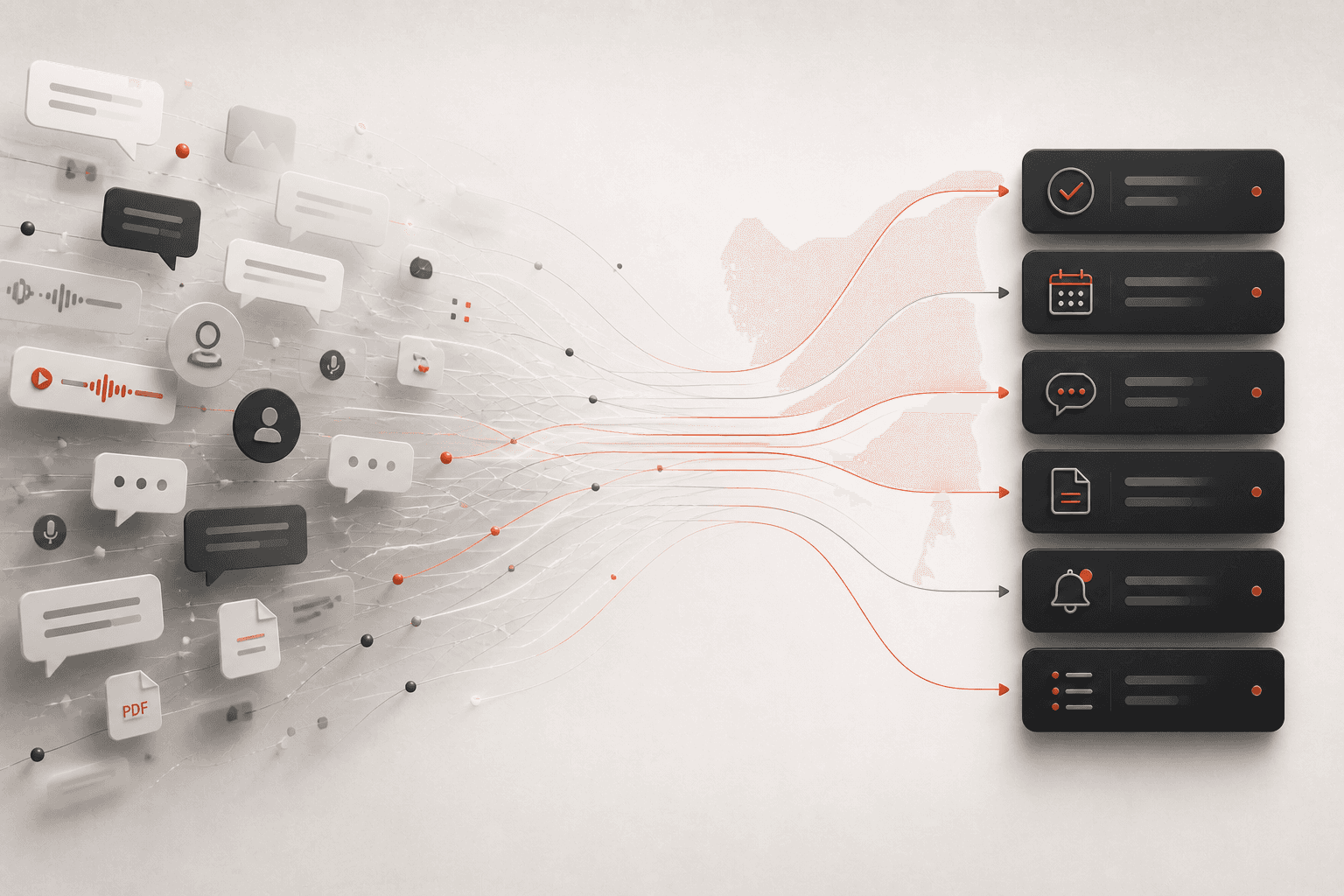
How to run busy WhatsApp groups for work (without drowning in them)

You're in a client group with 40 people, and by lunch it has 300 messages: a delivery question, two people arguing about a date, someone asking "what did we decide?" for the third time, and a good-morning sticker chain. The decision you need is buried, the person who should answer hasn't seen it, and you're spending your afternoon scrolling a group instead of doing the work it's about.
Good WhatsApp group management for work comes down to four habits. Use the admin settings so the right people can post and join, give each group one purpose and a few written rules, move decisions and votes into polls and pinned messages instead of long threads, and keep a short decisions log so nobody has to scroll. Then let tools carry the reading: WhatsApp's own mute and mentions help, and an assistant like Perisclaw can summarise any group, post polls, and alert you only when a message actually needs you.
Set up the group properly: admin settings that matter
Open the group, tap its name, then Group permissions. As an admin you control:
Edit group settings: turn it off so only admins can change the name, description, disappearing-message timer and pinned messages. Stops the group name turning into a joke at 11pm.
Send messages: turn it off for announcement-style groups, so only admins can post. Good for "Site updates" or "Price list" groups where members only need to read.
Add other members: turn it off so only admins can add people. Keeps client groups from quietly gaining a cousin.
Approve new members: turn it on so anyone joining by invite link waits for an admin to approve them.
Make at least two people admins, so the group isn't stuck when you're on leave. To promote someone, tap their name in the member list and choose to make them admin. A WhatsApp group can have up to 1,024 members, but a work group is usually easier to run below 50.
When to use a Community instead
If you run several related groups (a building, a franchise, a course with cohorts), a Community puts them under one roof with an announcement group where admins post to every member at once. Members' replies to an announcement are grouped and minimized, and notifications for them are muted, so one update doesn't start 200 pings. Use the announcement group for news and keep conversation in the smaller groups.
Write three group rules and pin them
Most busy groups don't need more features; they need a few written expectations. Put these in the group description and pin a message with them:
What this group is for: "Delivery updates for the Acme order. Billing goes in ACME | Billing."
How to ask for something: "@mention the person you need and say by when." Mentions matter: people who mute the group still get notified when they're @mentioned or replied to.
Response time and hours: "We reply within one working day. No calls after 8pm unless it's urgent."
Inside a chat you can pin up to three messages, for 24 hours, 7 days or 30 days, and admins choose whether members can pin too. Pin the rules, the current delivery date and the agreed price, so the answers to the three most common questions are at the top.
Use polls and events instead of long threads
Polls: when a thread turns into ten people suggesting times, end it with a poll. Tap the attachment icon, choose Poll, add the options, and turn off "Allow multiple answers" when you need one clear choice. You get a notification as people vote, and you can find old polls later by searching your chats for polls.
Events: for a meeting, a site visit or a launch, create an Event from the attachment menu instead of a message. Members RSVP, everyone sees who's coming, and people going get a reminder when it's close. The event also stays in the group info, so nobody asks "what time was it?" the day before.
Keep a decisions log
The single most useful habit in a work group is writing down what was decided. When a discussion ends, one person posts:
"Decided: delivery moves to 14 Nov. Owner: Ravi. Price stays at the quoted rate."
Pin it, or copy it into a shared doc or Sheet with the date and the group name. When someone asks "what did we agree?" next month, you link one line instead of scrolling for twenty minutes. If keeping this up by hand is the bit that slips, it's a good job to hand to an assistant (below).
Read groups on your schedule
Mute work groups you don't need live: 8 hours, 1 week or Always. You still get notified when someone @mentions you or replies to you.
Check groups at set times: twice a day is enough for most groups. Use the Groups filter in your chat list to see only groups.
Leave groups that have done their job: a project group with no activity for a month can go.
For the chats themselves (lists, labels, naming groups so they sort), see how to organize WhatsApp for work.
Let Perisclaw run the busywork in your groups
Perisclaw runs on your own WhatsApp number as a linked device, the same way WhatsApp Web does, so it can read the groups you're already in. You talk to it privately in your self-chat, or type /claw inside any group.
Summaries without scrolling
In your self-chat, ask: "Catch me up on the cohort group: unanswered questions, decisions made, and anything that needs me personally." Only you see the answer. If you type /claw summarise the decisions in this chat inside the group instead, the answer is posted there, labelled as Perisclaw, for everyone. You can also put a summary on a schedule: "Every Friday at 5, summarise the site team group: done, delayed, open questions." We cover summaries in more depth in how to summarize WhatsApp groups and voice notes with AI.
Alerts only when something needs you
Describe what matters and Perisclaw watches the group in the background:
"Watch my client groups. Only message me if a client mentions a delay, a complaint or a payment problem."
It reads the meaning of messages, not keywords, and shows you what it will watch before it starts. Spotting a problem never gives it permission to post in the group; it tells you in your self-chat and you decide.
Polls, decisions and group admin by asking
Polls: "Poll the team group: Thursday 4pm or Friday 11am for the review call?" Perisclaw posts a real WhatsApp poll, reads back who voted for what, and tells you who hasn't voted so you can chase them.
Decisions log: with Google Sheets connected, "When delivery details are finalized in the ops group, add the order, date and amount to the tracker Sheet."
Admin work: create a group with the right people, add or remove someone, make a person admin, get the invite link, or change who can send messages or edit the group info. Perisclaw confirms membership changes first, removing people or leaving a group always needs your OK, and some actions need you to be an admin. It adds at most 10 people at a time and offers the invite link for bigger groups.
Answering for a while: "Answer product questions in the Launch group for the next 2 hours." This runs as an Automation you can pause or delete; send
/claw stopin the group to stop a reply under way.
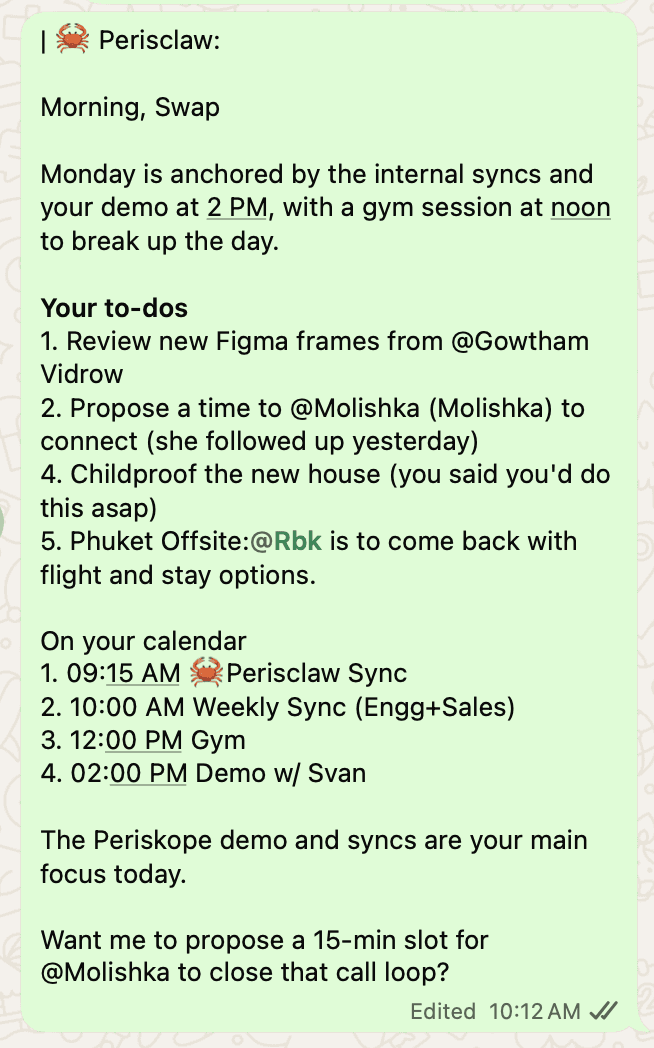
Promises people make in groups ("I'll send the drawings by Friday") also land in your morning briefing, so the group doesn't have to be your to-do list.
A caveat: Perisclaw connects as a linked device, which WhatsApp didn't build for outside tools, and WhatsApp's help centre warns that linking unofficial apps can lead to a ban. It's built for normal personal use: it adds at most 10 people to a group at a time, stops after 15 chats when asked to send the same message to many, and nobody outside WhatsApp can promise zero risk.
FAQ
How do I make only admins send messages in a WhatsApp group?
Open the group, tap its name, tap Group permissions and turn off Send messages. Members can still read everything; only admins can post.
How do I stop people joining my WhatsApp group without approval?
In Group permissions, turn on Approve new members. Anyone who uses the invite link then waits until an admin approves them.
Should I use a WhatsApp group or a Community for my business?
Use a group for one team, client or project where everyone talks. Use a Community when you run several related groups and need one announcement group for news that goes to members of all of them.
Can AI summarize and monitor my WhatsApp groups?
Yes. Perisclaw summarises any group you're in on request or on a schedule, and alerts you in your self-chat only when a message matches what you told it to watch for, like a complaint or a delay.
Will group members know I'm using an AI?
Summaries and alerts in your self-chat are visible only to you. If you type /claw inside the group, the reply is posted there and labelled as Perisclaw.
Stay on top of every busy group without reading all of it. Start your 7-day free trial →
Try Perisclaw free
Your personal AI assistant on WhatsApp. It reads the chats you allow and gets things done for you. 7-day free trial, no card needed.
Start for free